How to Invert Colors on a Photo or Video
You want to invert colors on a photo: black turned white, blue turned yellow, the look of an old film negative. On an iPhone, there’s no button for it in Photos, and the setting that seems to work won’t save anything.
Written by XRayly Team5 min readUpdated
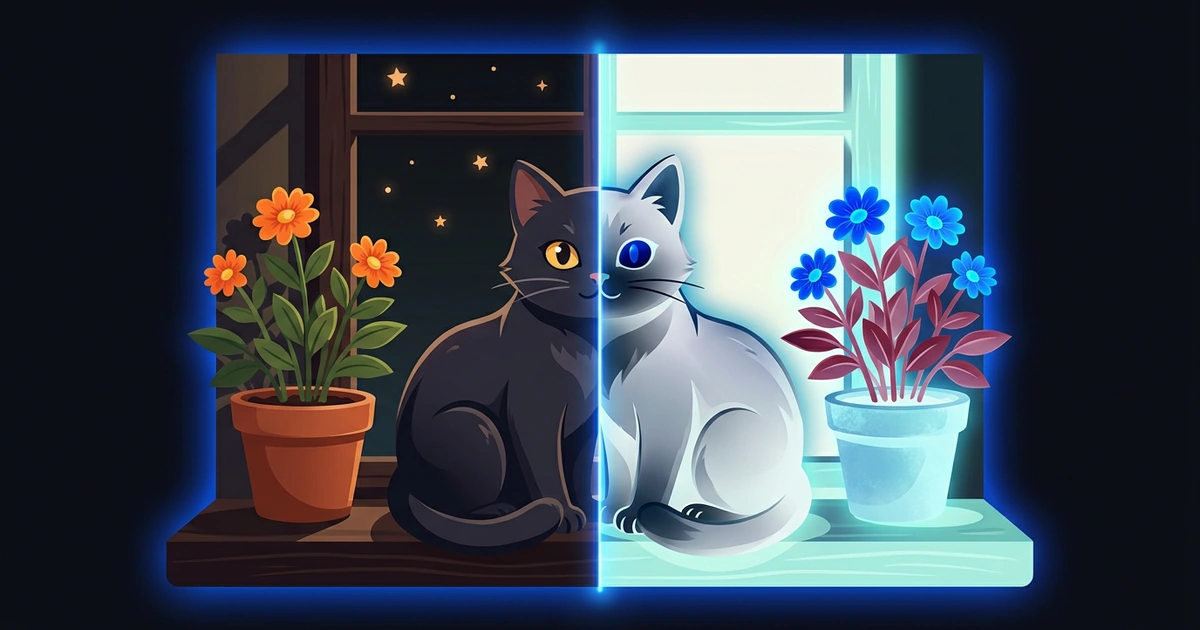
Most of the confusion comes from one word. “Invert” can mean two different edits: swapping every color for its opposite, or flipping the picture like a mirror. Photos does the flip but not the colors.
Some guides send you to an Invert filter in Photos. There isn’t one. Here are the ways that actually give you an inverted copy you can keep.
To invert colors on a photo, use a free online color inverter or a photo editor with an Invert tool, because the iPhone Photos app has no invert button. The Classic Invert setting only flips what your screen shows, and a screenshot keeps the normal colors. For a video, add an invert effect in a video editor or film with a live negative effect.
What Does Inverting Colors Do to a Photo?
Inverting swaps every color for its opposite. White becomes black, red becomes cyan (a bright blue-green), green becomes magenta and blue becomes yellow. Light areas turn dark and dark areas turn light, so the result looks like a film negative.
The math is simple. Each pixel (one dot of the picture) stores its red, green and blue as numbers from 0 to 255. Inverting subtracts each from 255, so white (255) becomes black (0).
Meant mirroring instead? In Photos, tap the edit button, then the crop button, then Flip. It swaps left and right, on videos too.
How to Invert a Picture on iPhone
To keep an inverted picture on iPhone, you need a tool that saves a new copy.
Preview it with Classic Invert. Go to Settings > Accessibility > Display & Text Size and turn on Classic Invert. Your whole screen shows inverted colors, photos too. Don’t use Smart Invert: it leaves photos as they are.
Don’t count on a screenshot. Classic Invert only changes your screen. A screenshot keeps the normal colors.
Save a copy with an online inverter. In Safari or Chrome, search “invert image” and open a free inverter. Upload your photo and save the result. For a private photo, pick one that works in your browser, so your photo isn’t uploaded.
Or use a photo editor. Many editors have an Invert or Negative button. If yours only has Curves (the line that controls dark and light), drag the bottom-left end to the top and the top-right end to the bottom.
How to Invert Colors on a Video
To invert colors on a video, you need an invert effect in a video editor or in the camera, because Photos can’t invert a clip either.
Already filmed it? In your video editor, look under effects or filters for Invert or Negative, apply it, then export a new copy. Check faces and shadows first: they change the most.
Filming something new? A camera with a live negative effect shows the inverted picture while you record, so you can step toward a lamp or a window until the shot looks right. That’s how XRayly’s Negative live effect works.
Why Does My Inverted Photo Look Washed Out?
A dark photo turns pale when you invert it, because every shadow becomes a highlight. A night shot that’s mostly black comes out mostly light gray, with little left to see.
Inverting works best on photos with clear light and dark areas: a silhouette against the sky, a black-and-white drawing, a bright flower on a dark background. Skin turns a cold blue, so portraits look strange. That’s great for a spooky edit, less so for a profile picture.
If the result looks flat, raise the contrast before you invert, or lower the brightness after. Each is one slider in most editors.
How XRayly Helps You Film in Inverted Colors
Open Live Effects in XRayly and tap Negative to see your camera feed in inverted colors in real time. It keeps the full spread from light to dark in a dim room too, unlike a plain invert of a dark photo. Clips run up to 30 seconds. Pick 9:16 for TikTok and Reels, or 3:4, 1:1 or 4:5.
It runs on your phone, so nothing is uploaded. For another look to cut in alongside it, Glitch makes the picture tear and jolt sideways every few seconds. You can try XRayly free on iOS and Android.
Frequently Asked Questions
How do I invert colors on Android?
Open Settings, select Accessibility, then under Color and motion select Color inversion and turn on Use color inversion. Google notes that it applies to everything on your device, including media. Like the iPhone setting, it only changes your screen, so use an online inverter or a photo editor to keep an inverted picture.
Can I invert a photo without downloading an app?
Yes. Open a free online color inverter in your phone’s browser, upload the photo and save the inverted copy. It works the same on iPhone, Android and a computer. Pick a tool that lets you download the result without signing up.
Is an inverted photo the same as a negative?
For a digital photo, yes. Inverting swaps light and dark and turns each color into its opposite, the look of a film negative. That’s why many editors label the button Negative, and why a negative filter and an invert filter give the same result.
Sources and further reading
- Change display colors on iPhone to make it easier to see what’s onscreen (Apple Support)
- Crop, rotate, flip, or straighten photos and videos on iPhone (Apple Support)
- Turn on dark theme & color inversion (Android Accessibility Help)
See your world differently
Download XRayly, try X-Ray, Thermal, and Night Vision on your own photos, and find your favorite style.