Explore XRayly’s Live Effects
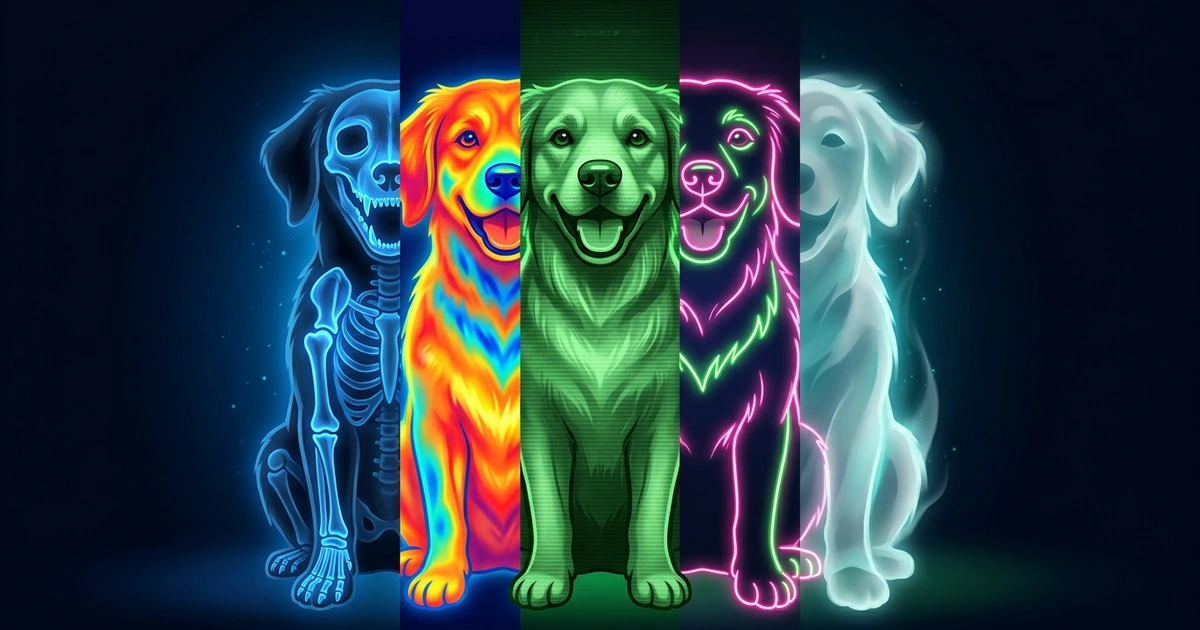
Live Effects puts a glitch, a green night-vision glow or a ghostly halo on your camera while you film. You see the look before you press record, so there’s nothing to wait for.
Written by XRayly Team4 min readUpdated
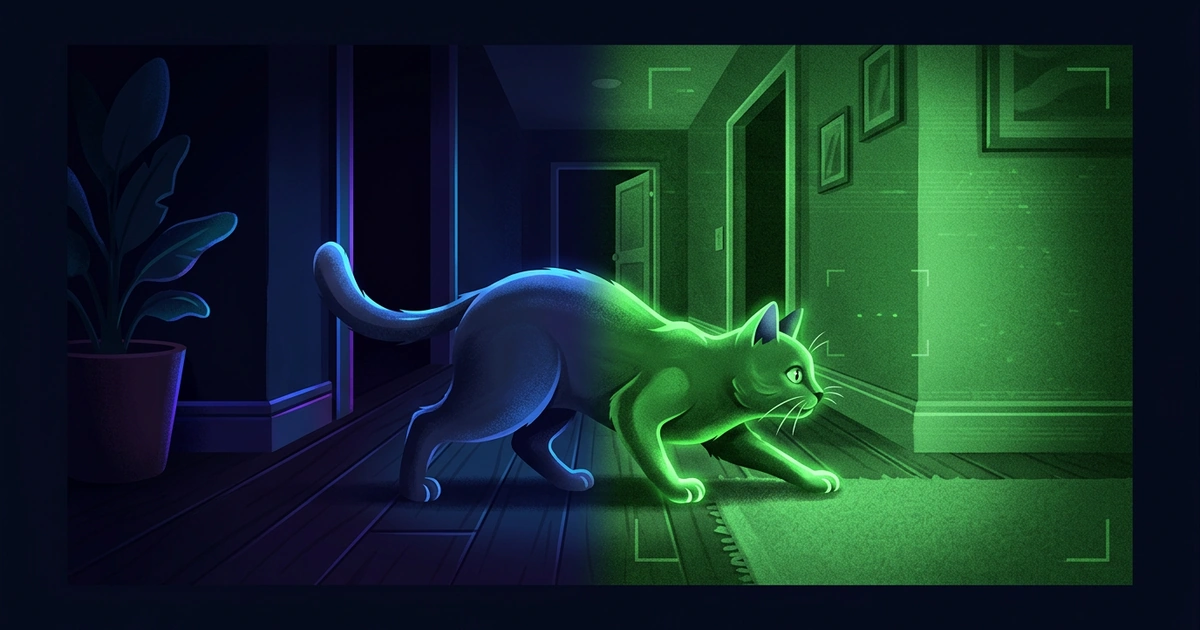
Live Effects has six effects: Glitch, Night Vision, Thermal, Neon, Ghost Vision and Negative. Each one shows on your camera in real time, and you can record a clip of up to 30 seconds with it. Glitch and Night Vision are free; the other four need Pro.
Here’s how to pick an effect, set up your shot, record, and save your clip.
Open Live Effects, pick one of six effects, tap record, and you have a clip to save or share.
Open Live Effects
Tap the Live Effects card on the home screen. The first time, XRayly asks for camera access; allow it so the effect can show on your camera.
The camera opens on the back lens with Glitch already on, so you’ll see the effect the moment the screen loads.
Pick an effect
The six effects sit in a row along the bottom of the camera view. Swipe the row sideways to see them all and tap one to switch. The look changes on the spot, so you can try every effect on the same scene before you record.
| Effect | What you see | Free or Pro |
|---|---|---|
| Glitch | Every few seconds the picture tears, jolts sideways and breaks into blocks | Free |
| Night Vision | A green, grainy picture with lifted shadows and darker corners | Free |
| Thermal | Heat-map colors | Pro |
| Neon | Glowing outlines | Pro |
| Ghost Vision | A pale glow with a halo around your subject | Pro |
| Negative | Inverted colors that keep a full range of tones, even in a dark scene | Pro |
Pro effects show a lock; tapping one takes you to the Pro screen. Night Vision, Thermal, Neon and Ghost Vision are also photo effects, if you’d rather start from a photo.
Set up your shot
Choose the frame shape and the camera before you record. Both stay fixed once recording starts.
- Frame shape: tap the button left of record for 3:4, 9:16, 1:1 or 4:5.
- 9:16 fills a phone screen, the shape for TikTok, Reels and Stories.
- Switch camera: the button right of record flips between front and back.
- Flash: the button at the top right turns on the back camera’s light.
Record a clip
Tap the round record button to start and tap it again to stop. A timer at the top shows the time left, and recording stops by itself at 30 seconds. The flash still works mid-clip. Clips have no sound. Add music or a voiceover in your video editor before you post.
Frequently Asked Questions
Which XRayly Live Effects are free?
Glitch and Night Vision are free. Thermal, Neon, Ghost Vision and Negative need Pro and show a lock until you have it.
Can I take a photo with a live effect?
No. Live Effects records video only. For a still with an effect, use XRayly’s photo effects instead: choose X-Ray, Thermal, Night Vision, Neon or Ghost Vision on the home screen, then take a photo or pick one from your gallery.
Are my Live Effects videos uploaded anywhere?
No. Live effects run on your phone, so the camera feed and your clips stay on the device. They leave XRayly only when you save them to your photo library or share them.
See your world differently
Download XRayly, try X-Ray, Thermal, and Night Vision on your own photos, and find your favorite style.