Explore XRayly’s Photo Effects
One photo can take on a completely different mood with the right effect. XRayly gives you five styles to play with, from a glowing X-Ray look to bright Neon outlines.
Written by XRayly Team3 min readUpdated
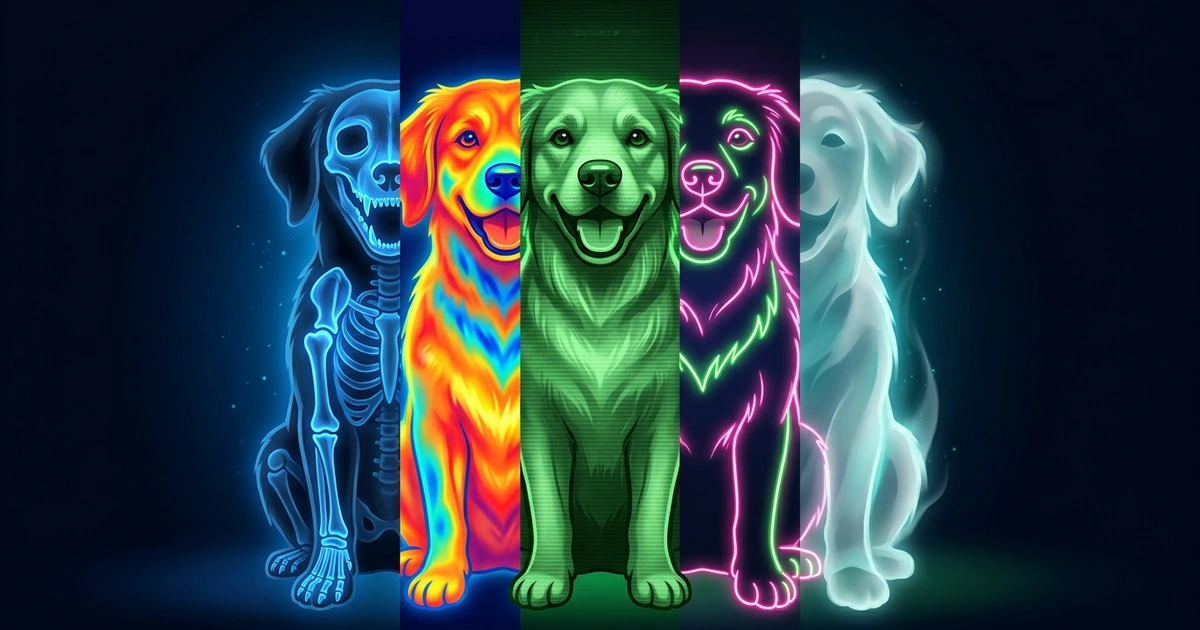
XRayly has five photo effects. Each one starts from your own photo and usually takes about 45 seconds, and you can compare the result with your original, save it, or share it.
Here’s what each effect does, shown on a real photo next to the original, and the kind of shot that suits it.
Choose a style for the mood you want: bold, colorful, or a little spooky.
Meet the five effects
The home screen lists the five effects, each with a preview image. Tap one, then take a photo or pick one from your gallery.
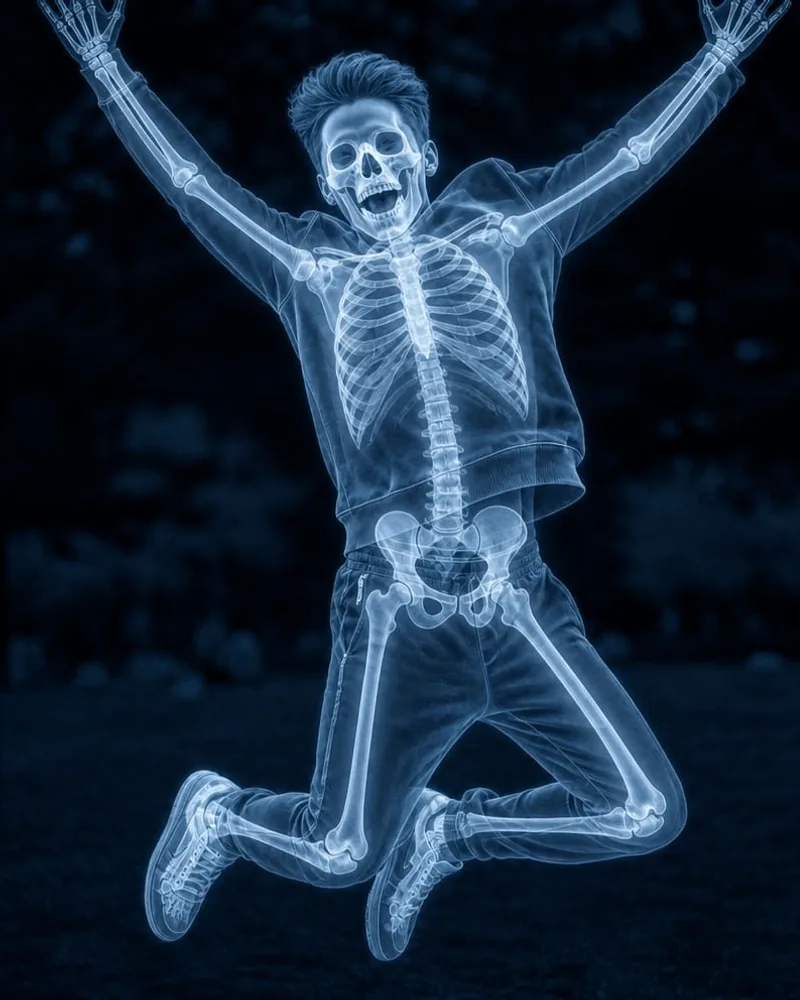
X-Ray
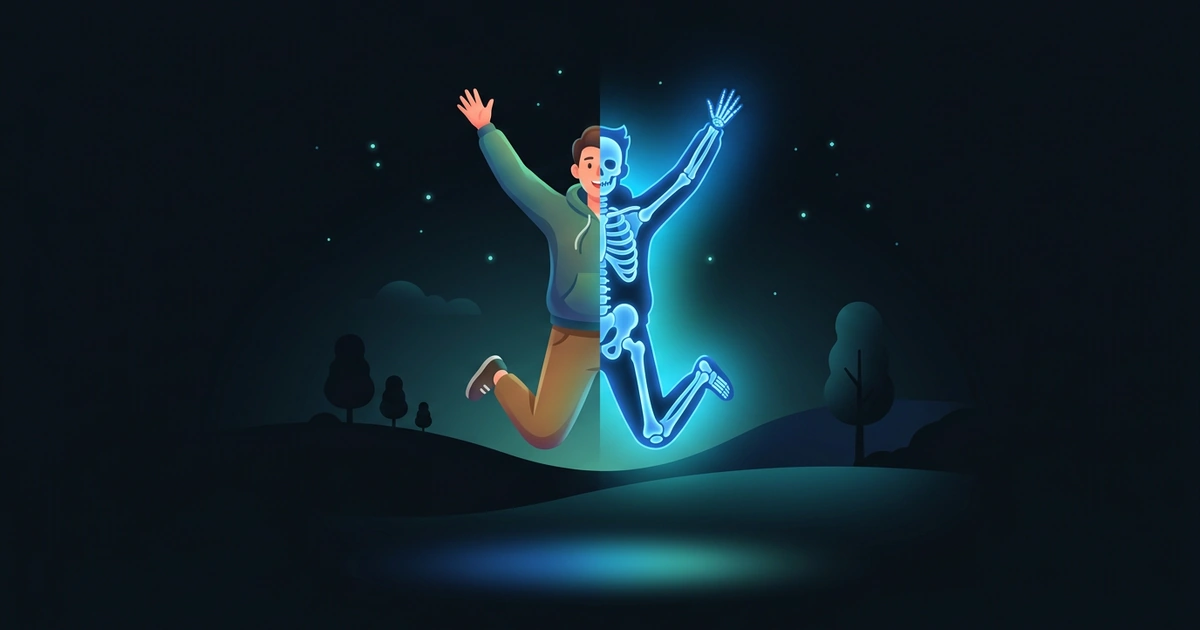
X-Ray adds a blue glow and imagined skeletal details for a scan-inspired look. A jumping pose or raised arms can make the result especially playful.
Try a photo with a clear pose and enough room around your subject to keep their arms and legs in the frame.

Thermal
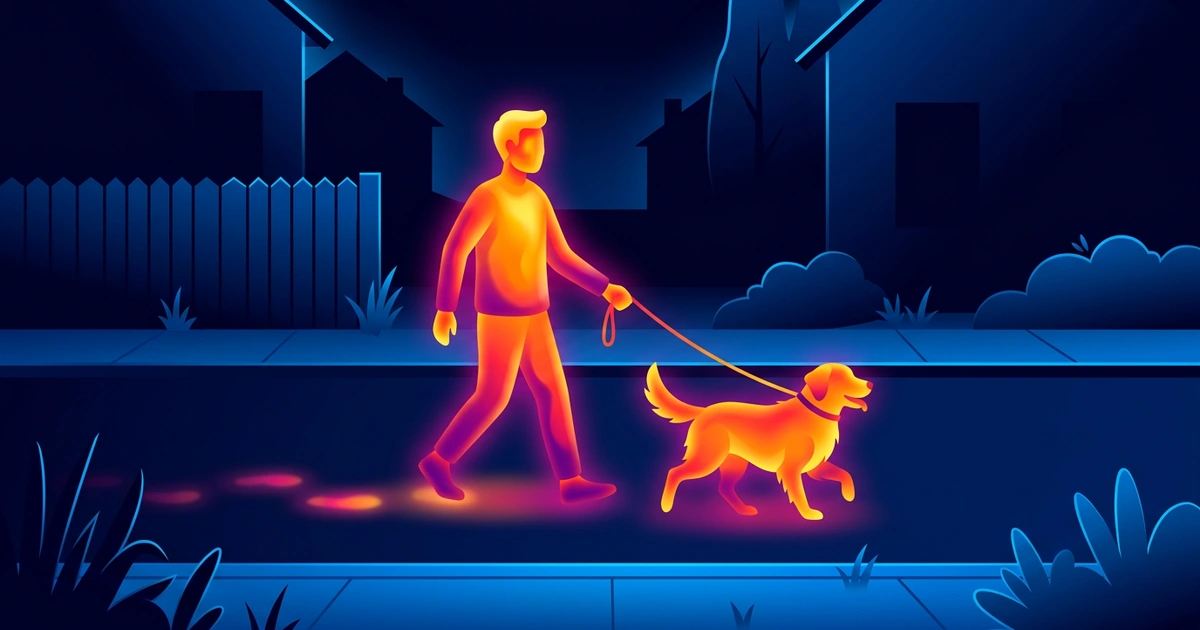
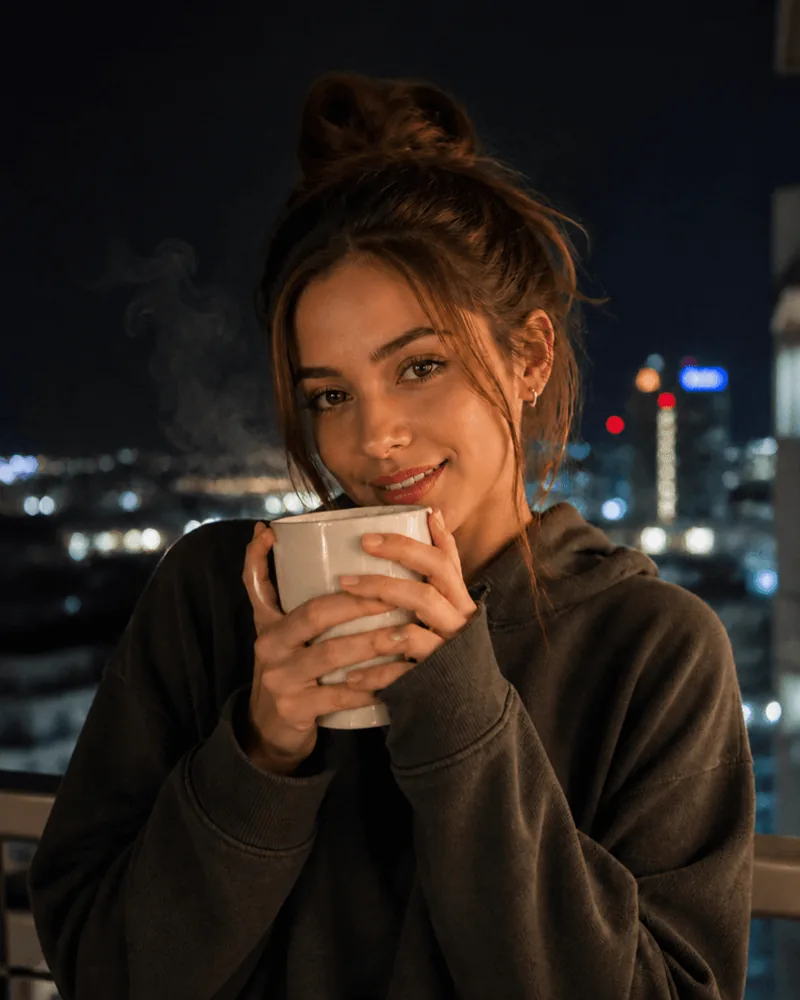
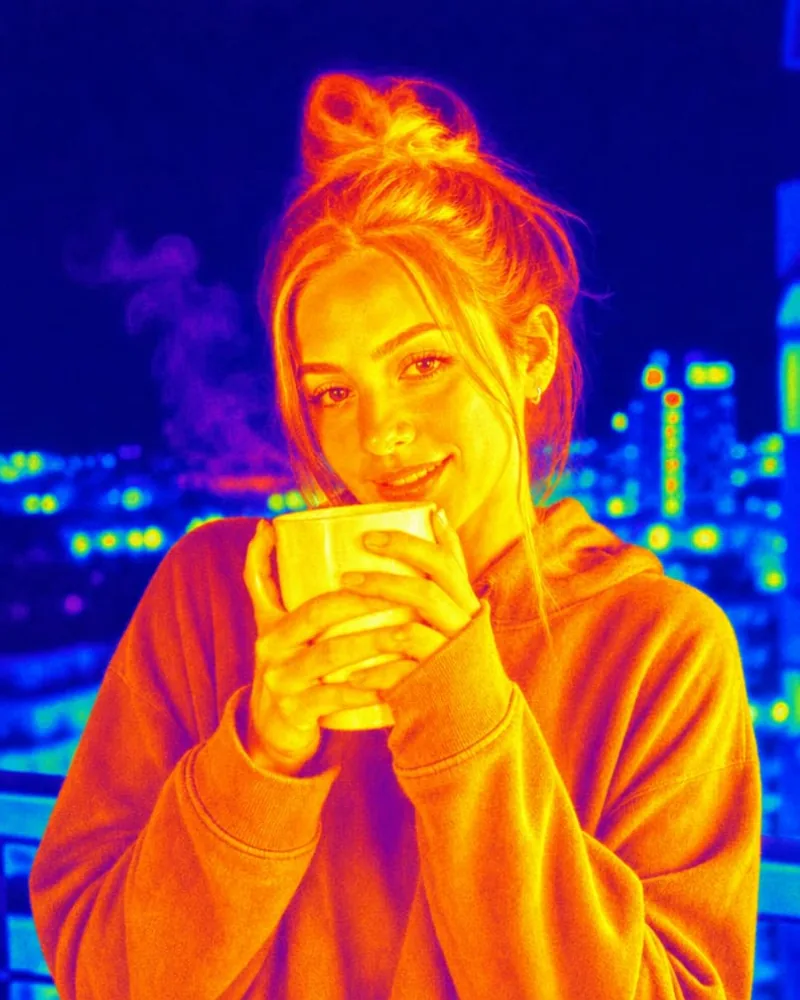
Thermal turns familiar colors into bright yellows, oranges, reds, and blues. It gives an everyday portrait a vivid heat-map look.
Try a selfie or a photo with a simple background to see the colors stand out.
Night Vision
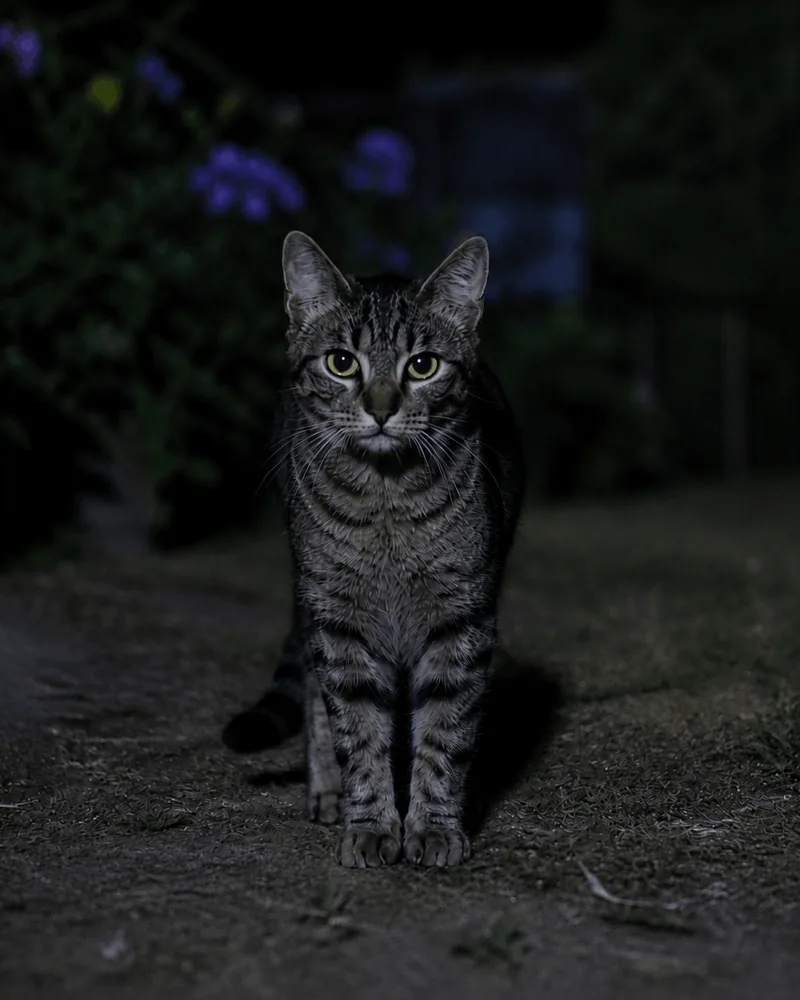
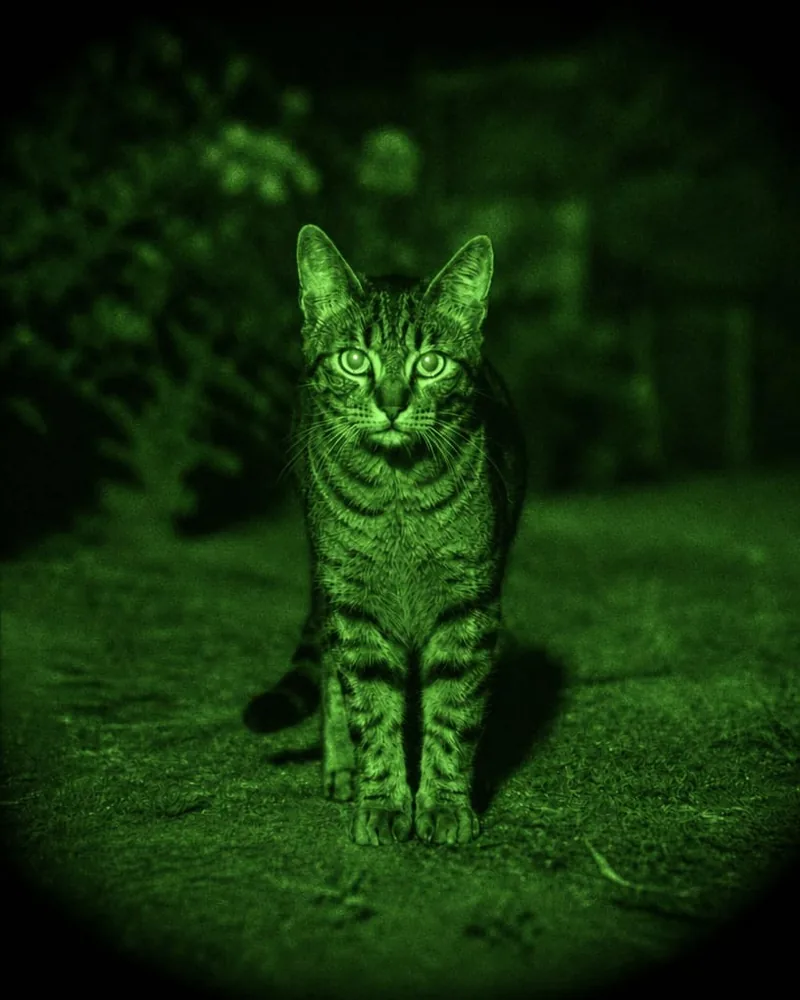
Night Vision adds a green glow and a grainy, after-dark feel. It can give a pet photo or an outdoor shot a fun spy-movie mood.
You can start with a clear daytime photo. The effect creates the night-vision look for you.
Neon
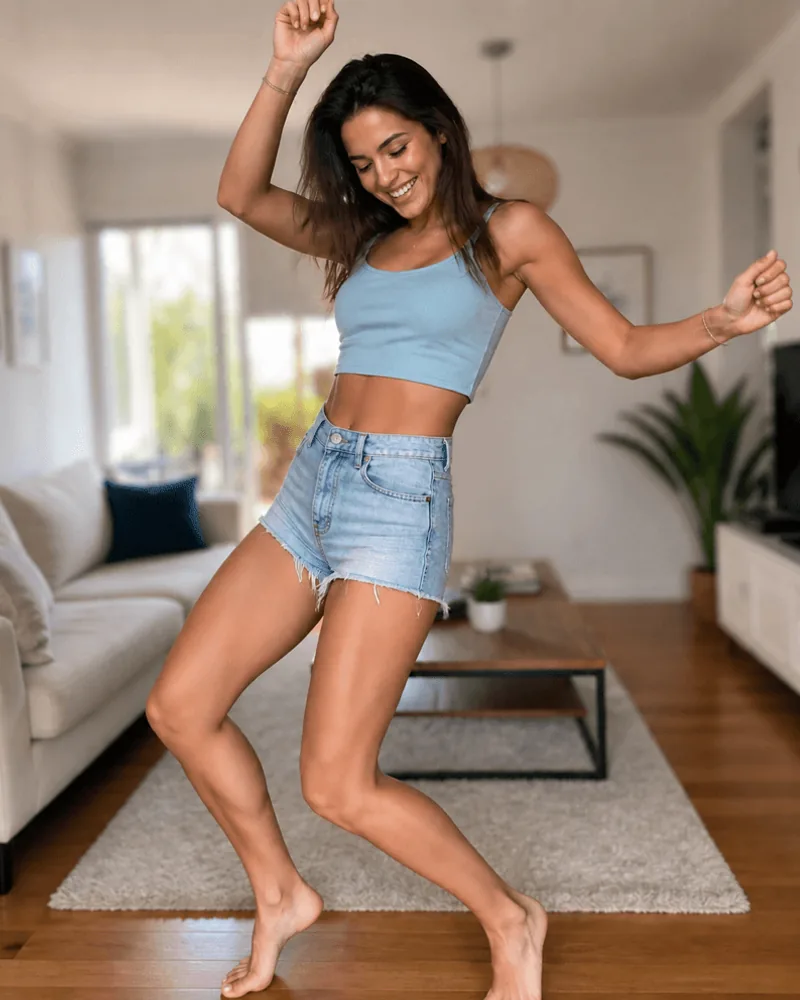
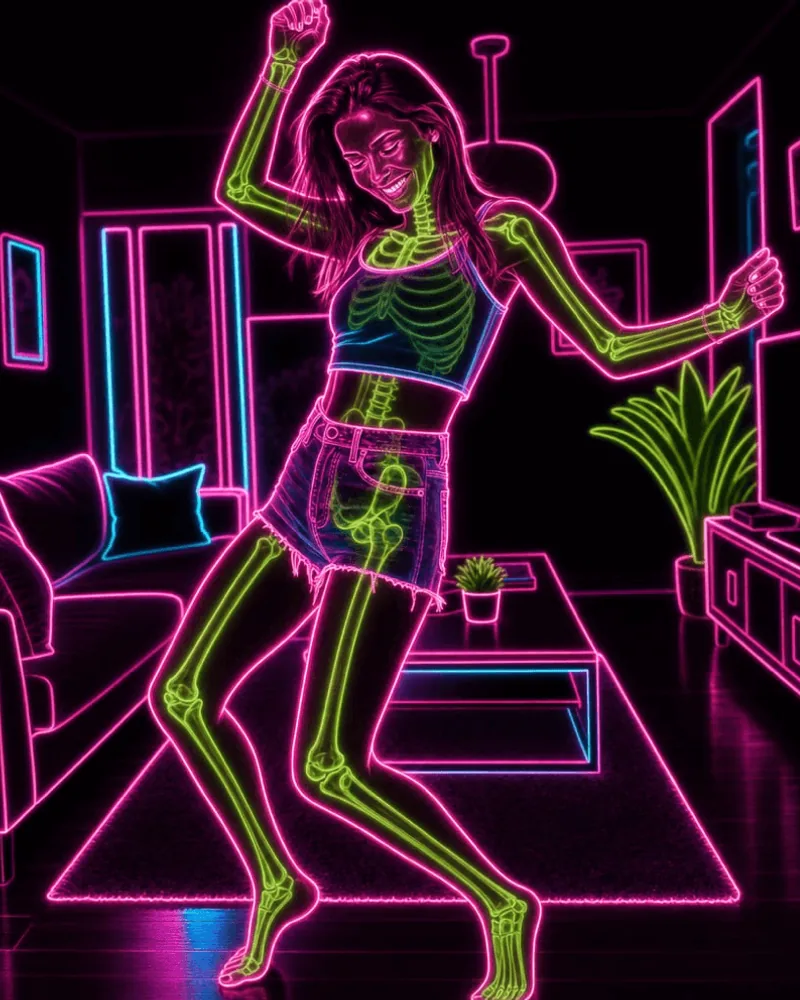
Neon brings glowing outlines and electric color to your subject and surroundings. Pink, green, and blue details give the photo a lively, illustrated feel.
Try a dancing pose or a scene with interesting shapes to explore the glowing lines.
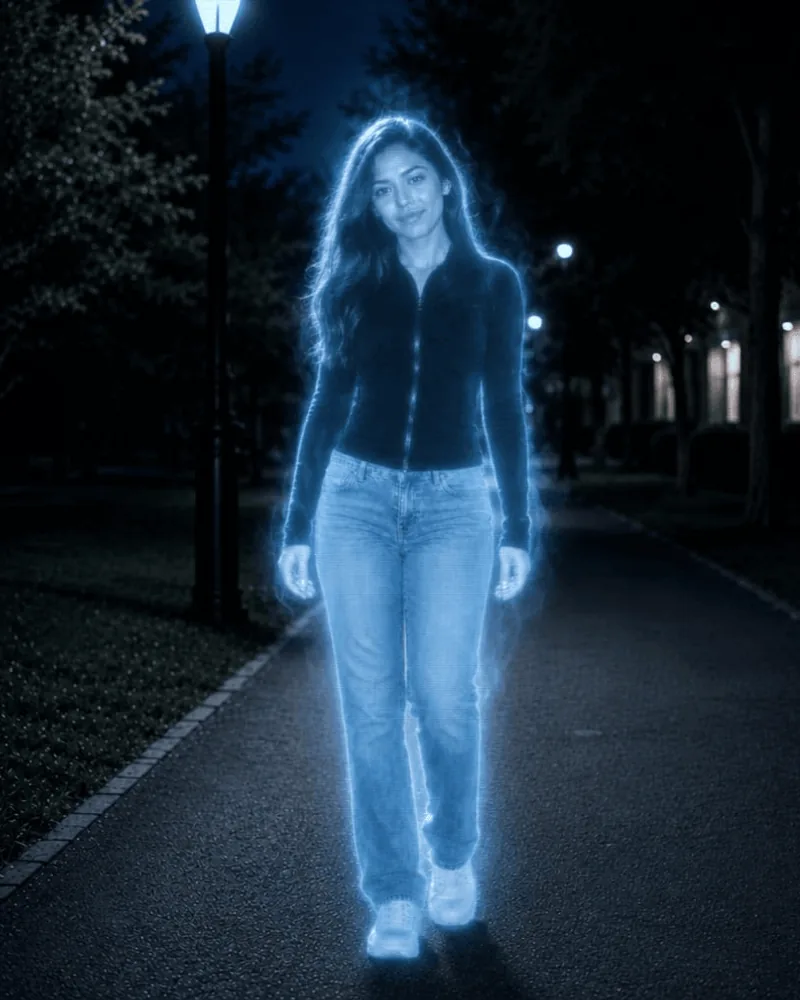
Ghost Vision
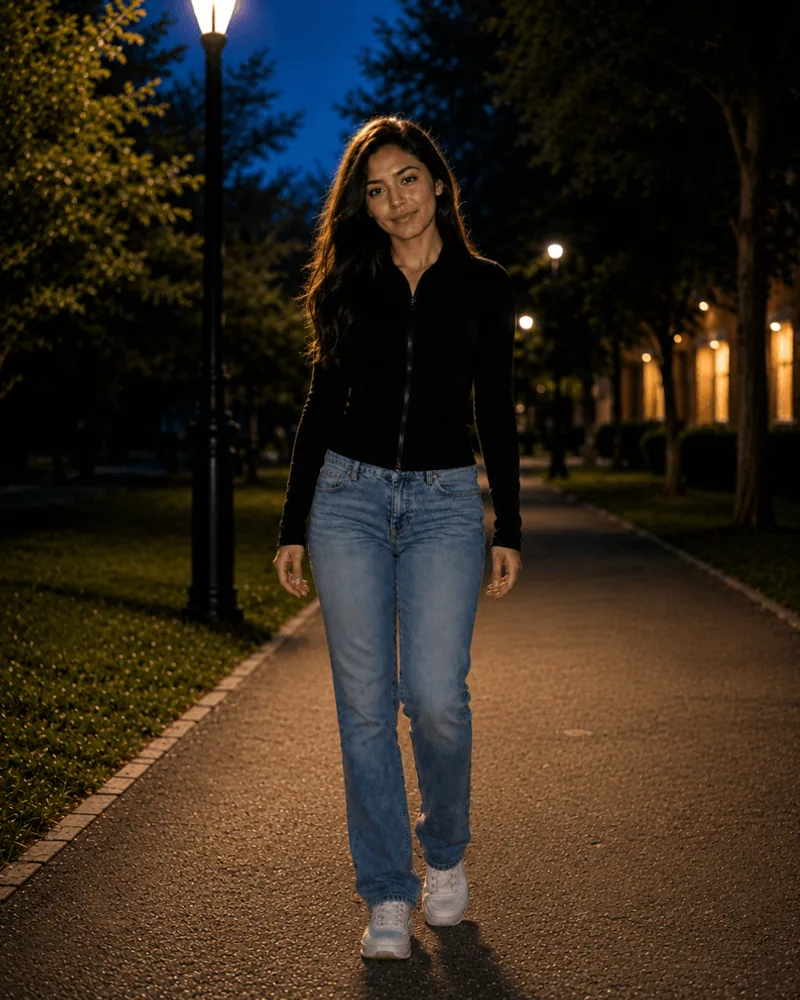
Ghost Vision gives your subject a pale glow and a ghostly, otherworldly appearance. An ordinary portrait can suddenly feel like a scene from a spooky story.
Try an outdoor portrait or a photo with space around your subject for an atmospheric look.
Try your first effect
Choose an effect in XRayly, then take a photo or pick one from your gallery. Crop it to frame your subject and create your result.
Save a look you like or share it with a friend. Follow the photo tips below when choosing your starting photo.
Frequently Asked Questions
How many photo effects does XRayly have?
Five: X-Ray, Thermal, Night Vision, Neon, and Ghost Vision. Choose one on the home screen, take a photo or pick one from your gallery, and frame your shot. Each effect usually takes about 45 seconds, and you can compare the result with your original photo.
Do I need a dark photo for Night Vision?
No. Start with a clear daytime photo where your subject is easy to see. Night Vision adds the green glow and grainy, after-dark feel for you. A photo that is already very dark can hide the details the effect works with.
Can I try another effect on the same photo?
Yes. On the result screen, use Try another effect to reuse your original photo with a different style. A photo that looks playful in Neon might feel more atmospheric in Ghost Vision, so it’s worth comparing a few.
Are the effects real X-ray or thermal images?
No. All five are artistic effects made for fun. XRayly doesn’t capture real X-rays or measure temperature. Details like bones or heat colors are generated by AI as part of the style, not detected in your photo.
See your world differently
Download XRayly, try X-Ray, Thermal, and Night Vision on your own photos, and find your favorite style.